Starter Guide
Your first week with CareNotes.
From the first recording to a whole office on one Premium plan. Here is where to start, what is included with every account, and what needs Premium.
Start here
Four steps. Most offices finish in an afternoon.
Record your first note
Open Home, tap Record, and talk to your patient the way you already do. The note drafts itself.
How to recordReview, edit, and send
Read the draft, fix anything, and send it straight into the chart when your software is linked.
How to reviewAdd your team
Another doctor or hygienist working with you? Create a Team and invite them by email.
Add a doctorShare Premium and link
One plan for the whole office. Share it from the Team, then each member taps Linked.
Share and linkAlready recording? Skip to adding your team or custom templates.
Step 1
Record your first note. Free
Home is where every visit starts.
You do not need to link anything or change how you talk to patients. Record the visit, and CareNotes turns the conversation into a structured clinical note.
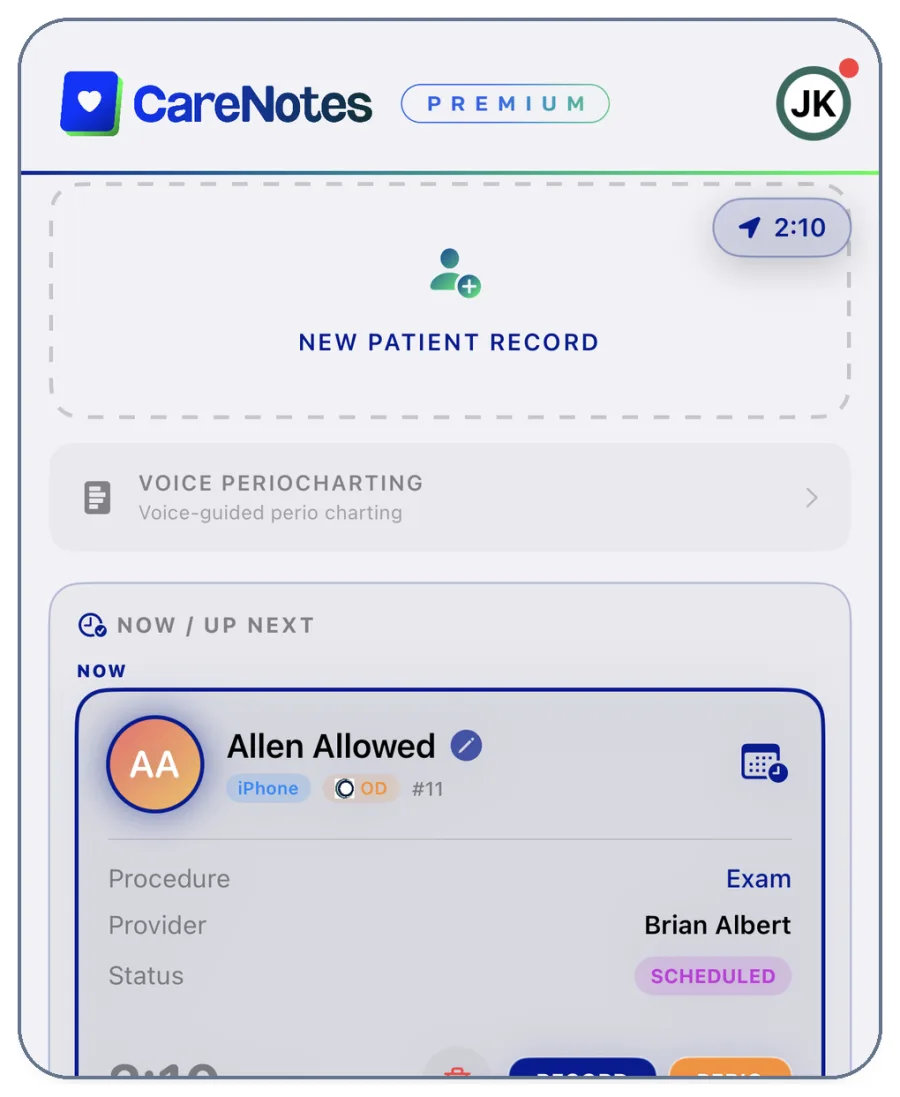
- Open the Home tab and tap New Patient Record. With Calendar Sync, today’s patients are already waiting under Now / Up Next. Premium
- Pick the procedure from the list icon. Your own custom templates show up there too.
- Tap Record and talk to your patient the way you normally would.
- Stop when you are done. CareNotes transcribes the visit and drafts the note.
Step 2
Review it, then send it to the chart.
You sign it. CareNotes files it.
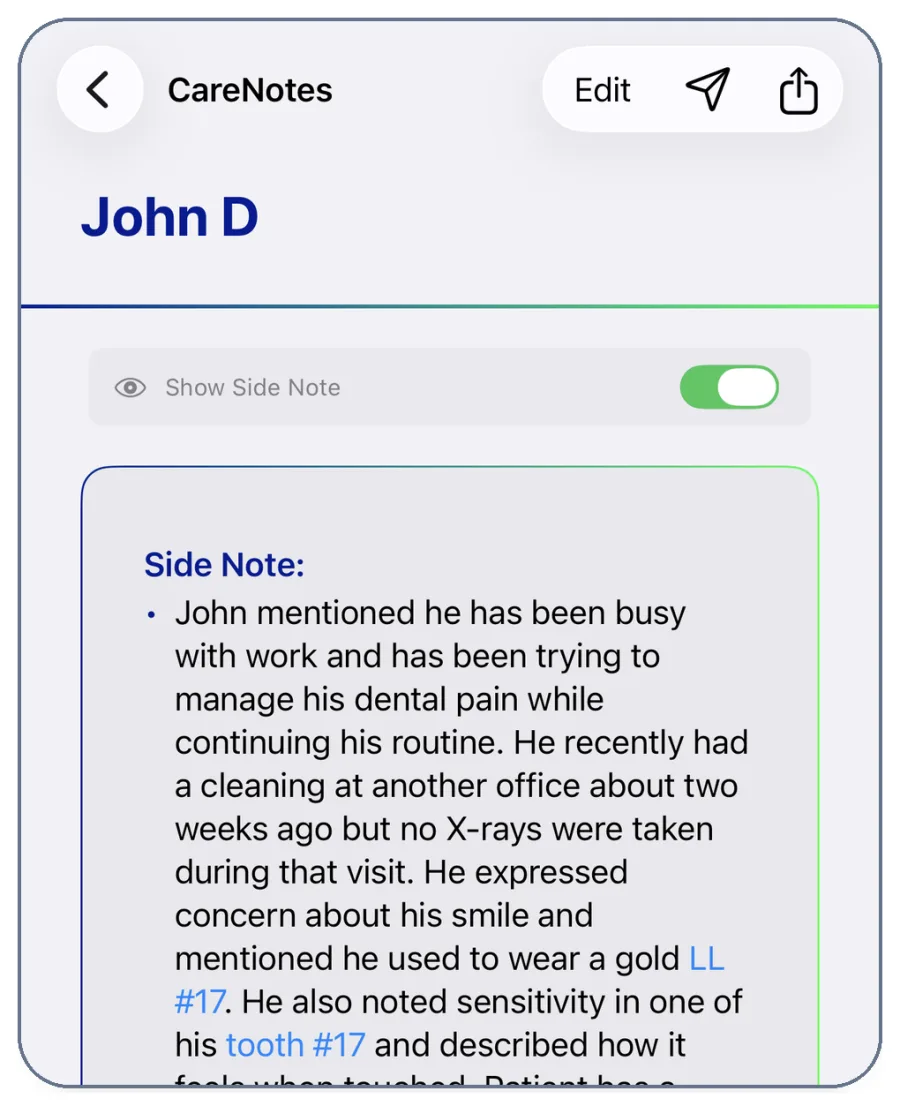
Every note is a draft until you say otherwise. Read it, tap Edit to change anything, and turn on Show Side Note to see the personal details CareNotes kept apart from the clinical record.
- Open the note from Home or History.
- Tap Edit for typed or voice changes. Free
- Send it into your practice software from Ready to Upload on Home, or from the note’s Send to… button. The label matches your software: Send to Open Dental, Send to Eaglesoft, and so on. Premium

Step 3
Working with another doctor? Add them to a Team. Free
One account per person. One Team per office.
Every provider signs in with their own CareNotes account, so notes stay attributed and private. Teams connect those accounts: you see each other’s shared notes, and the captain can share Premium and the office’s software connection.
- Ask your colleague to download CareNotes and create their own account. You will need the email they signed up with.
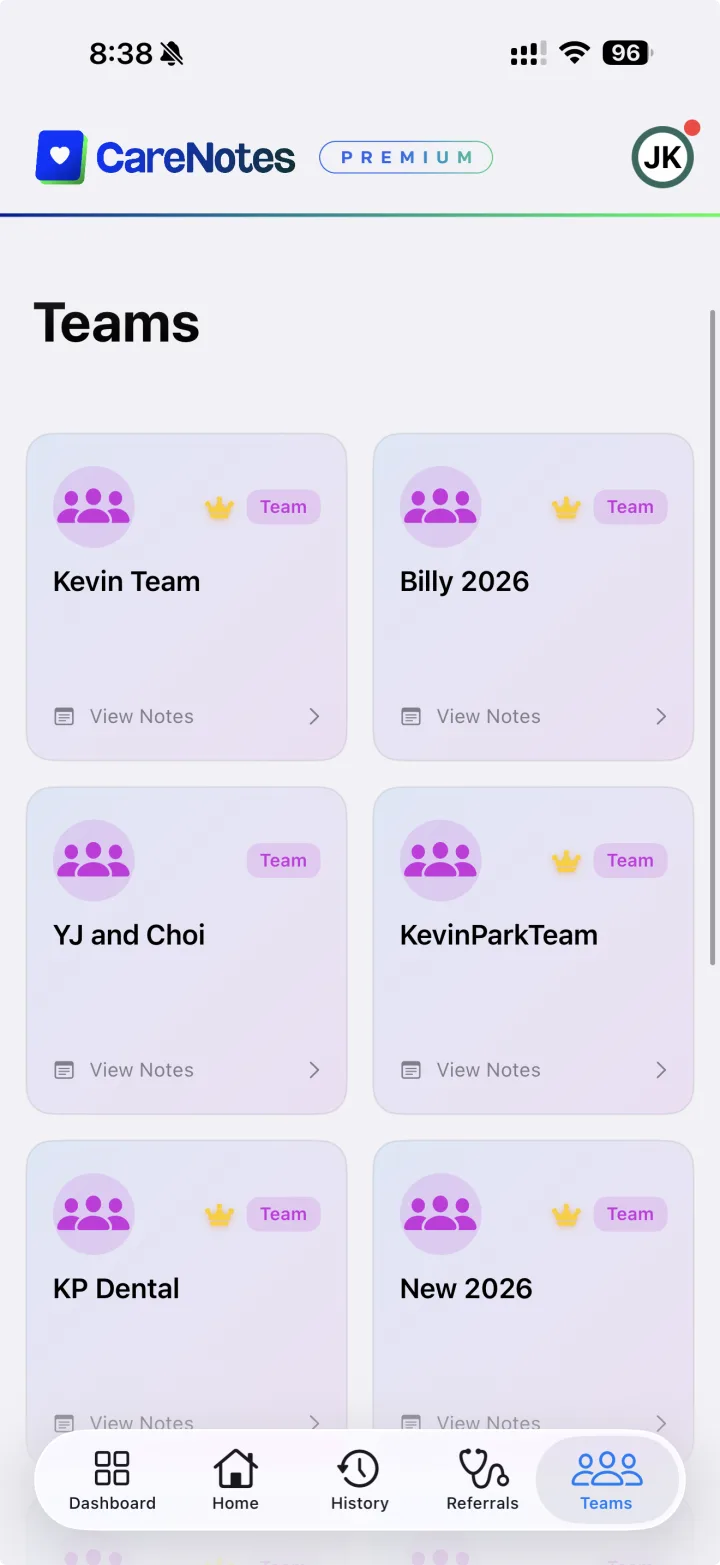
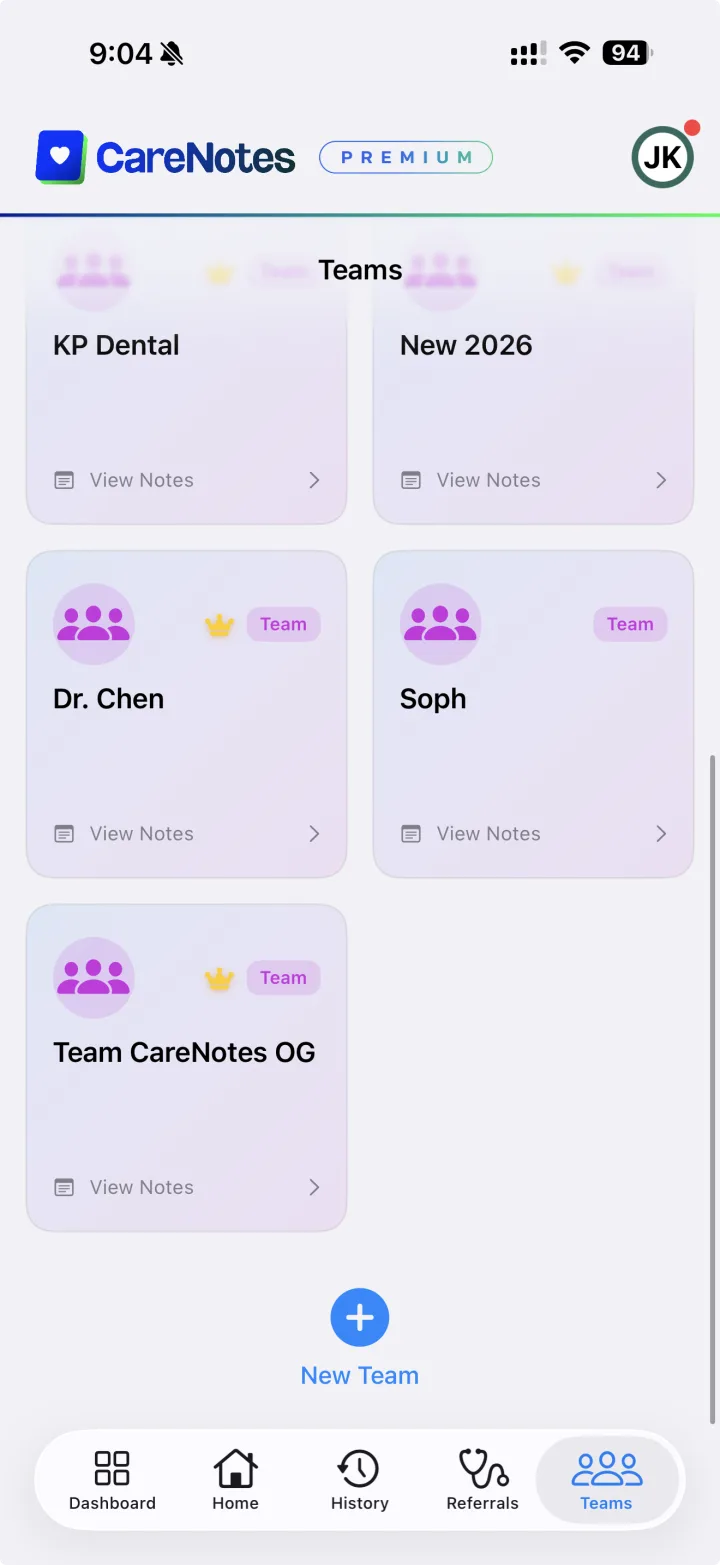
- Open the Teams tab and tap New Team to create a team for your office, or open the one you already have.
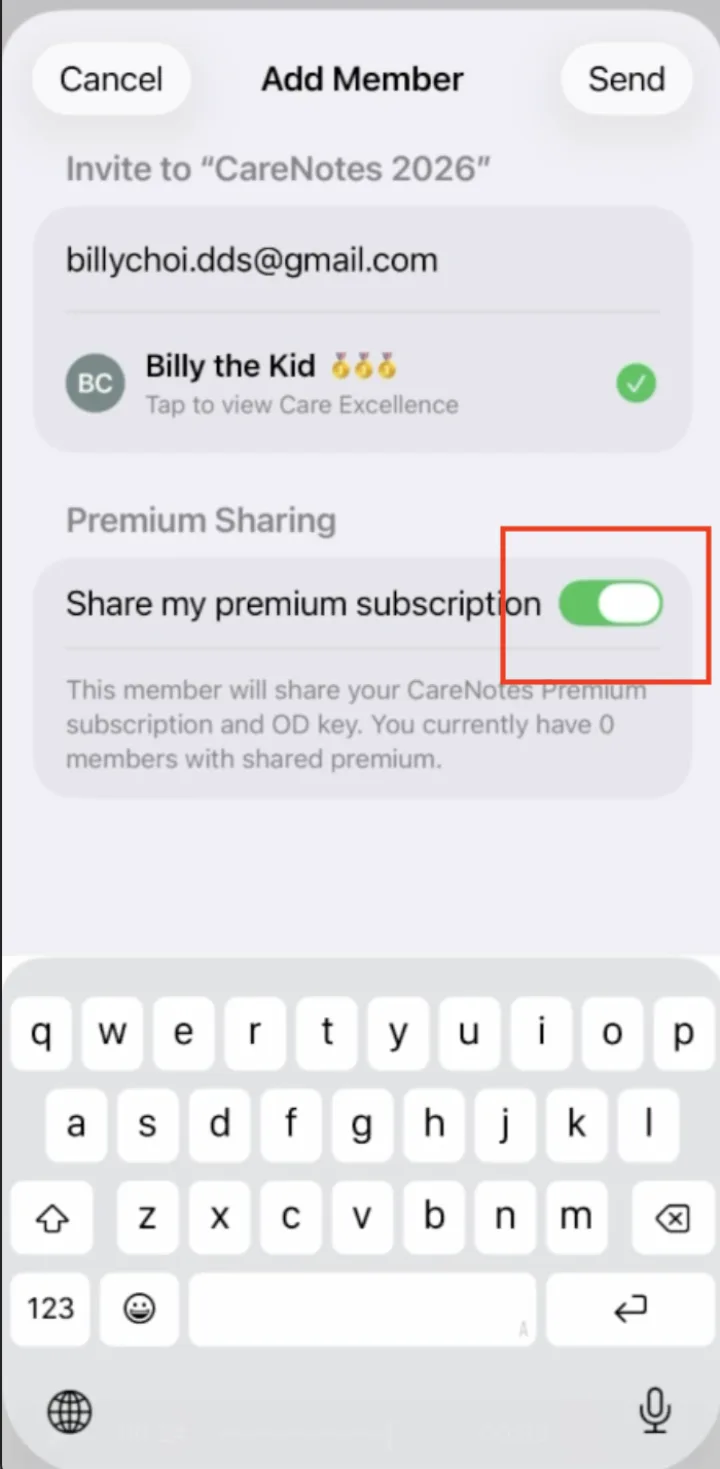
- Tap Add Member, enter their CareNotes email, and tap Send.
- They accept the invite in their app. You will see them in the members list, with a crown next to the captain.
Step 4
One Premium plan for the whole office. Premium
The captain shares. Nobody else buys anything.
Premium is priced per location with unlimited users. The person who subscribes is the team captain. Flip one switch per member and they get Premium on their own account, along with the office’s Open Dental or Dentrix Ascend connection.
- While inviting: on the Add Member sheet, turn on Share my premium subscription before you tap Send.
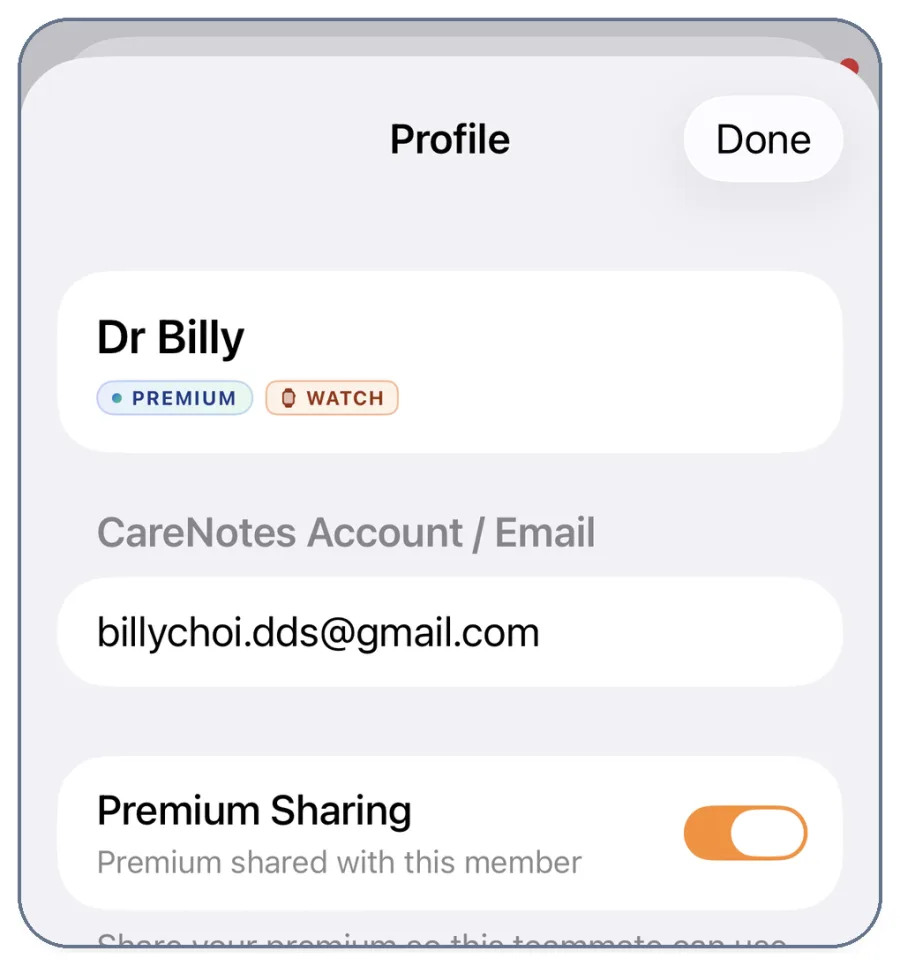
- For someone already on the team: open the team, tap the member, and turn on Premium Sharing.
- The member shows a Premium Shared badge in the list. They are done on your side.
Team members
Link the shared office. Takes a minute. Premium
Settings, Dental Software, Linked.
Once your captain shares Premium, your app needs to point at the office’s practice software. You never enter keys or passwords; the shared office already carries them.
- Open CareNotes and wait 30 to 60 seconds on Home so the shared Premium arrives.
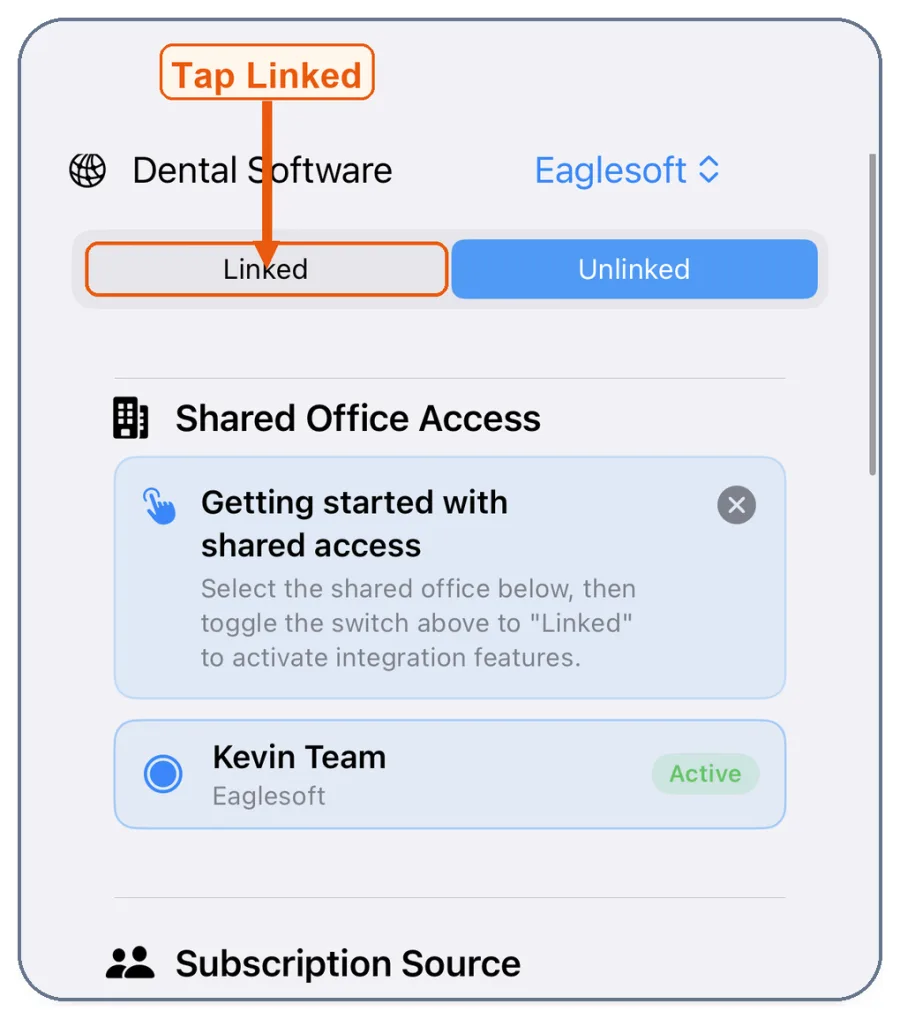
- Go to Settings, then Dental Software.
- Under Shared Office Access, select your office team.
- Confirm Subscription Source reads Team (shared).
- Tap Linked. Today’s schedule appears on Home.
Custom templates
Already have a note format you love? Teach it to Carey. Free
Ortho, perio maintenance, oral surgery. Any format, once.
An orthodontist on the team, or a hygienist with a perio maintenance format the office has used for years? Paste the template into Carey, CareNotes’ in-app assistant, and every note for that procedure comes out in your structure.
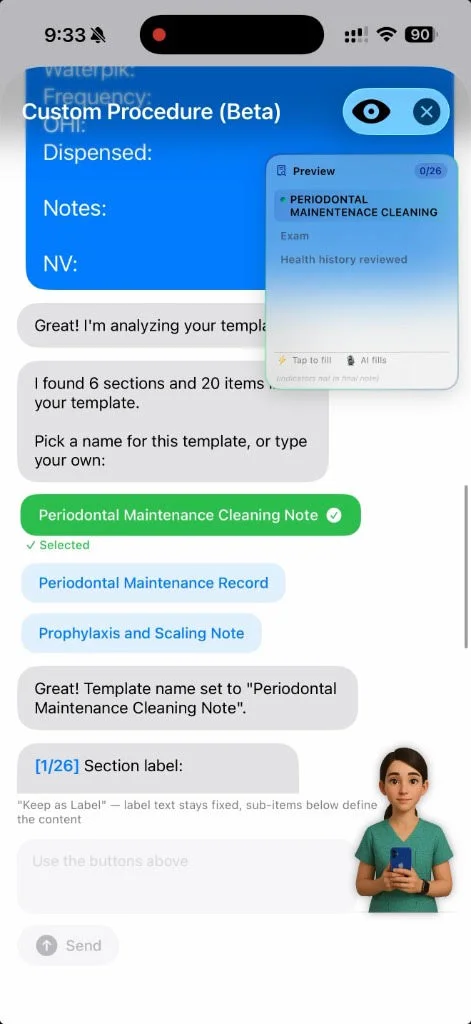
- Open Carey and paste your existing note template.
- Carey reads it. The first Reading your template… step can take about two minutes. Leave the screen open.
- Pick a name. Carey suggests a few, such as Periodontal Maintenance Cleaning Note.
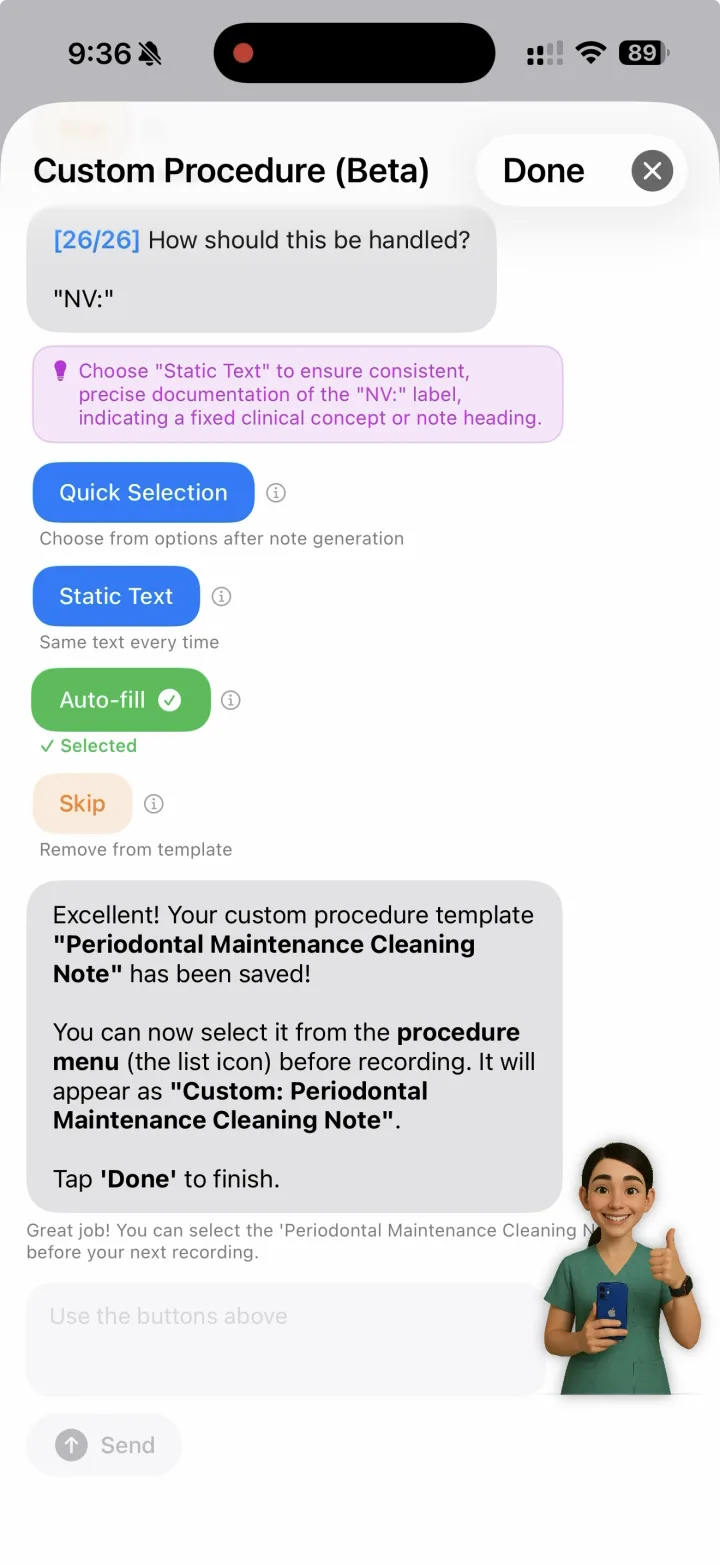
- Walk through each section and choose how it is filled: Quick Selection (tap an option after the note is generated), Static Text (same text every time), Auto-fill (pulled from the recording), or Skip.
- Tap Done. Before your next recording, choose it from the procedure menu (the list icon). It appears as Custom: Periodontal Maintenance Cleaning Note.
Templates are saved on the phone that built them and travel with each note, so a teammate reading your note sees the same labels without installing anything.
Know your way around
Five tabs. Here is what lives where.
Home
Record a new patient or pick one from today’s schedule. Ready to Upload lives here too.
ScheduleHistory
Every note you have made. Search by patient or date, star the ones you revisit.
FreeTeams
Your office. Invite members, view shared notes, and share Premium as captain.
FreeReferrals
Networks with specialists. Send a clinical note securely and keep the conversation in one place.
FreeSettings
Dental Software and Linked, recording and note languages, note style, and My Facts.
Linked & languagesQuick answers
The questions new offices ask in week one.
I have another doctor working with me. How do I add her?
Do my team members have to pay for Premium?
Linked is asking me to buy Premium.
The schedule on Home is empty.
How do I change the templates? I want an ortho template.
Can I record in Spanish and get an English note?
Which practice software can I link?
Can someone walk my team through this?
Ready when you are
Record one note today. Bring the team tomorrow.
Core note-taking is free. Premium links your practice software for the whole office, priced per location with unlimited users.