Open your welcome email
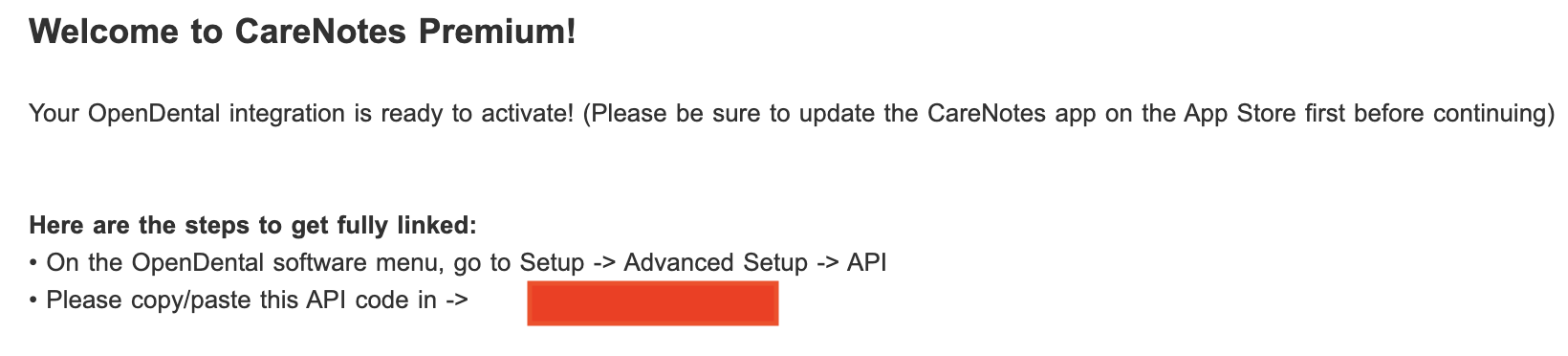
Find the "Welcome to CareNotes Premium" email we sent you. It contains your API code — the red box below. Keep this email open; you'll paste this code into Open Dental in Step 4.
A picture-by-picture guide to connect CareNotes with your dental software. No tech experience needed — just follow along.
Tap your software. We'll build the exact steps for you.
Using Open Dental, Dentrix Ascend, or Denticon? No Agent to install. Tap yours above for the quick steps.
Open Dental connects through its built-in API — no software to install. You'll just copy the API code from your welcome email into Open Dental. Takes about 5 minutes.
Find the "Welcome to CareNotes Premium" email we sent you. It contains your API code — the red box below. Keep this email open; you'll paste this code into Open Dental in Step 4.

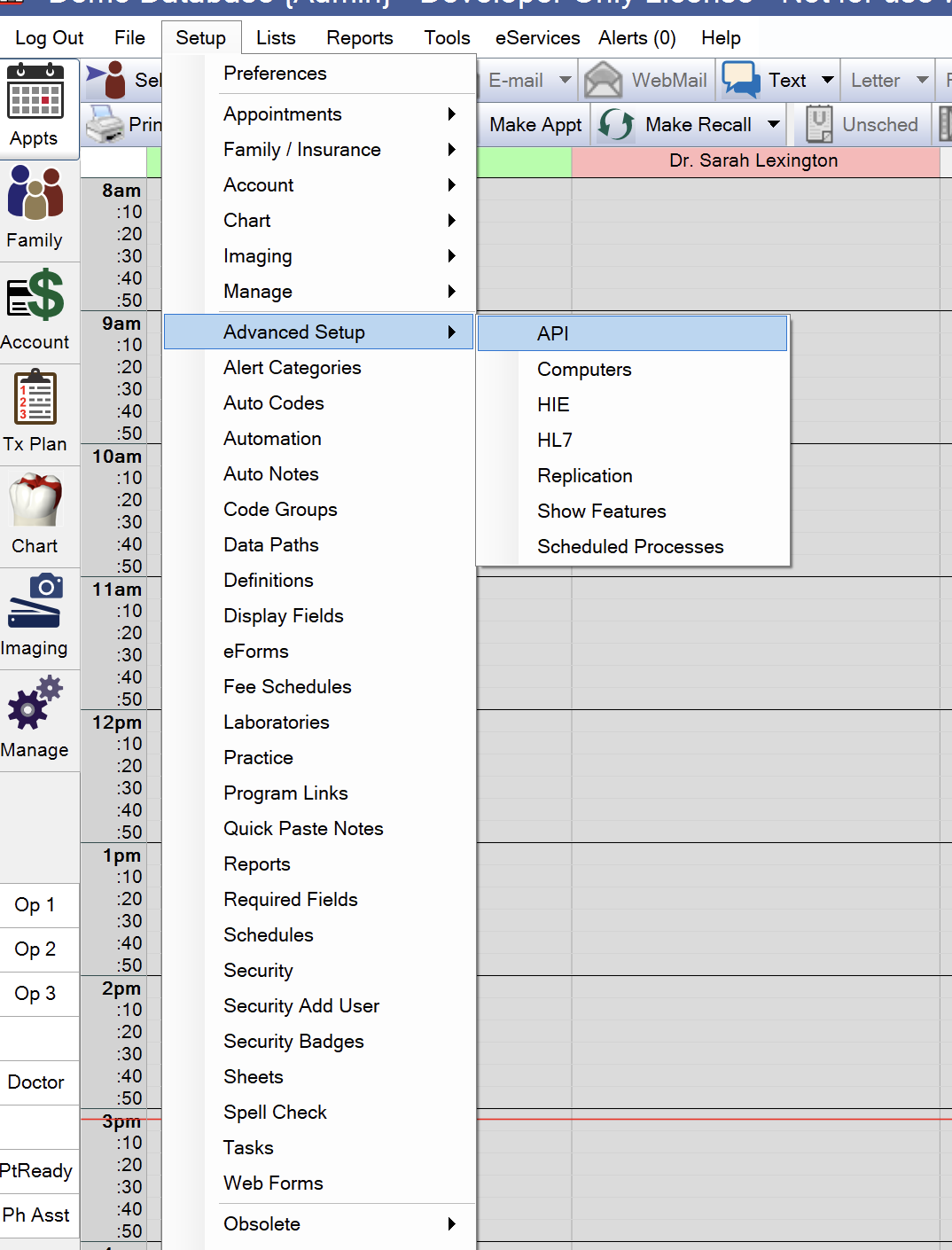
In Open Dental, click Setup → Advanced Setup → API.

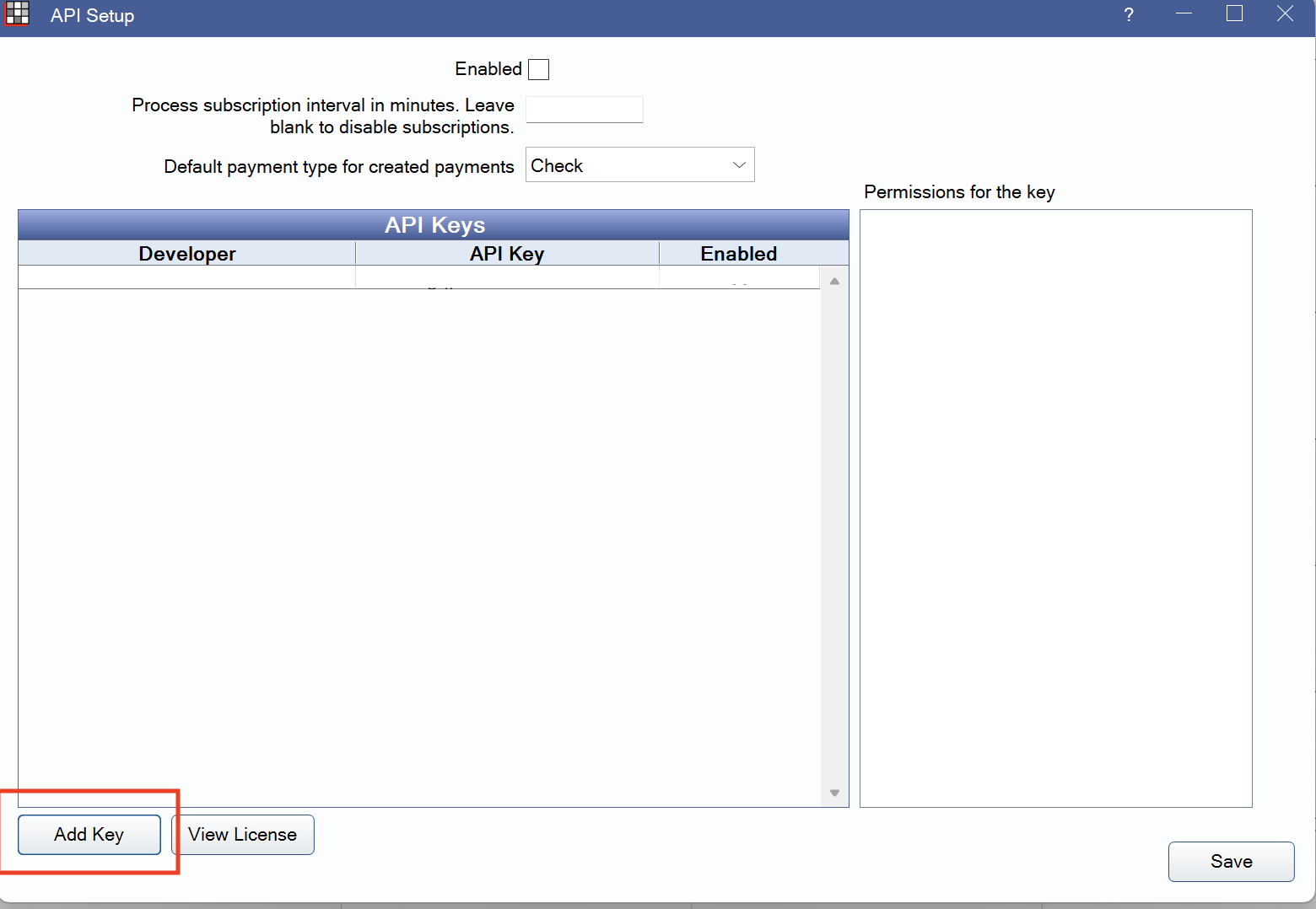
At the bottom-left of the API Setup window, click Add Key. Also tick the Enabled box at the top.

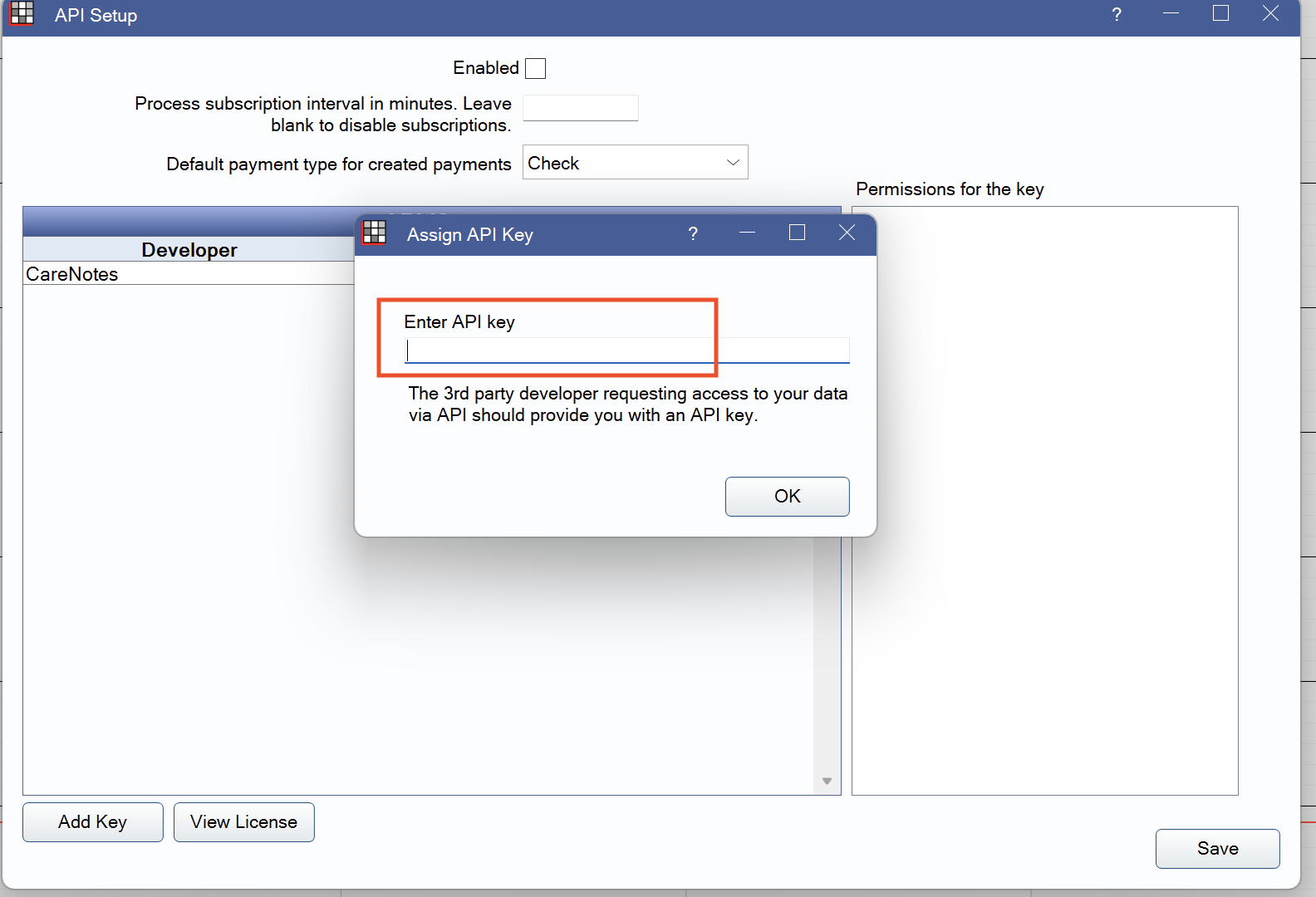
The developer will show as CareNotes. In the Enter API key box, copy/paste the API code from your welcome email (Step 1), click OK, then click Save.

Open the CareNotes app and your notes will flow straight into your Open Dental patient charts.
Open the CareNotes AppGreat news — there's nothing to install or set up in Dentrix Ascend. We link it securely on our end. Just send us your practice details from the CareNotes app and we'll take care of the rest.
Open the CareNotes app and fill in the short practice info form.
Submit it — that sends us everything we need to connect.
We build the link on our side and email you when it's live.
We're putting the finishing touches on the Denticon connection. Like our other cloud integrations, there'll be no Agent to install. Leave us your info and we'll email you the moment it's ready.
Click the button to download the installer. Save it to your Desktop so it's easy to find.
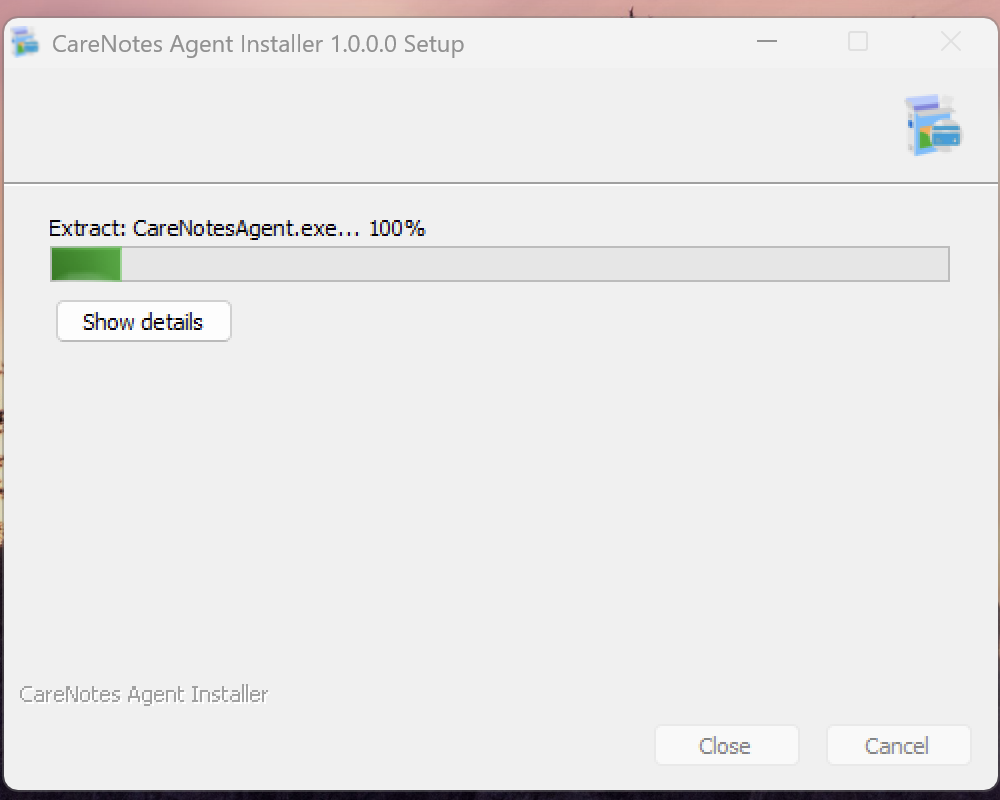
Double-click the downloaded file. Let it finish extracting, then click Close.

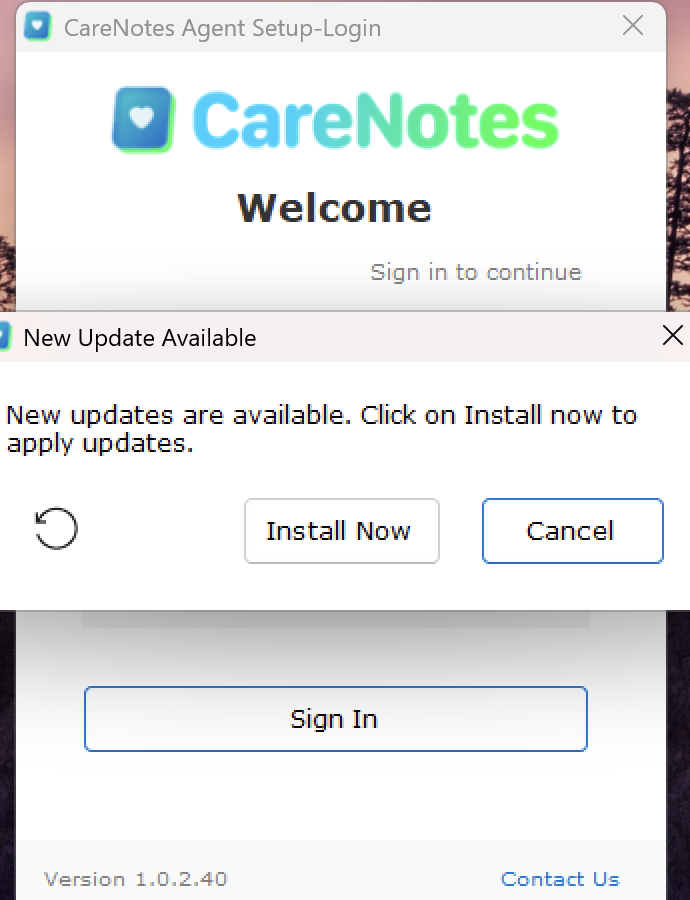
The app opens and checks for updates. If you see "New Update Available", click Install Now and wait a moment.

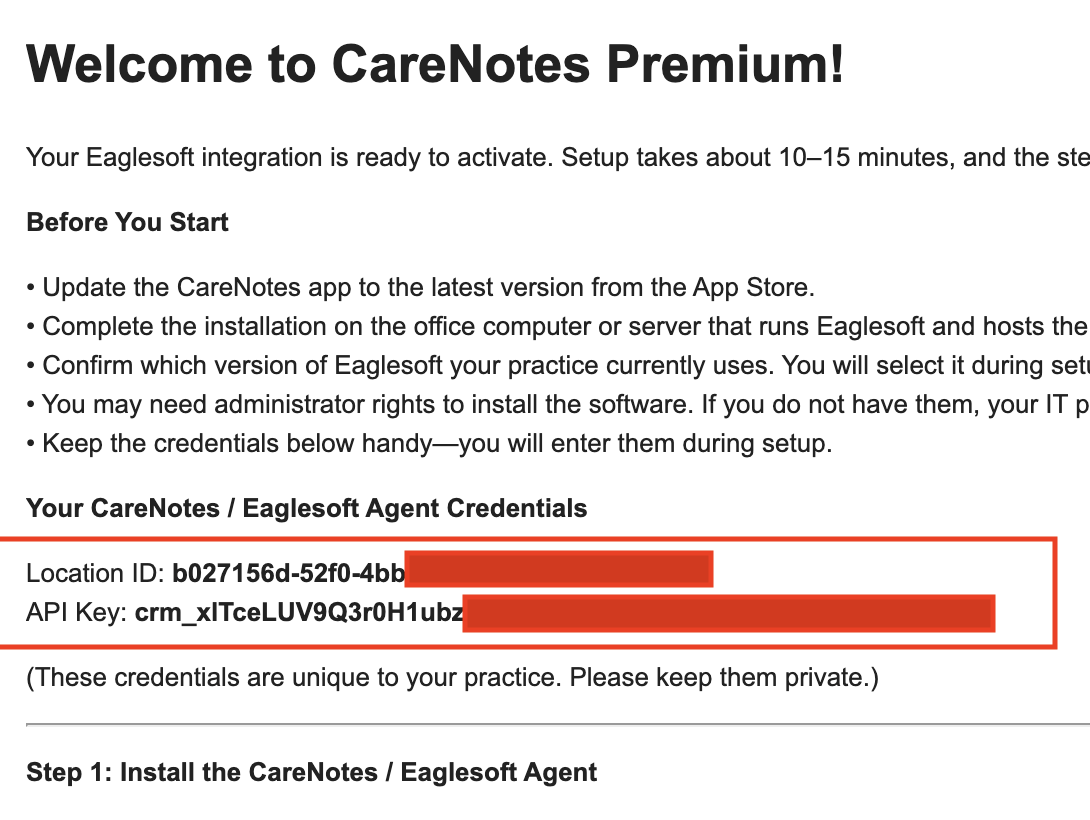
Open your "Welcome to CareNotes Premium" email. Inside the red box you'll find two things you need next:
Location ID
A long code that starts with letters & numbers.
API Key
A code that starts with crm_

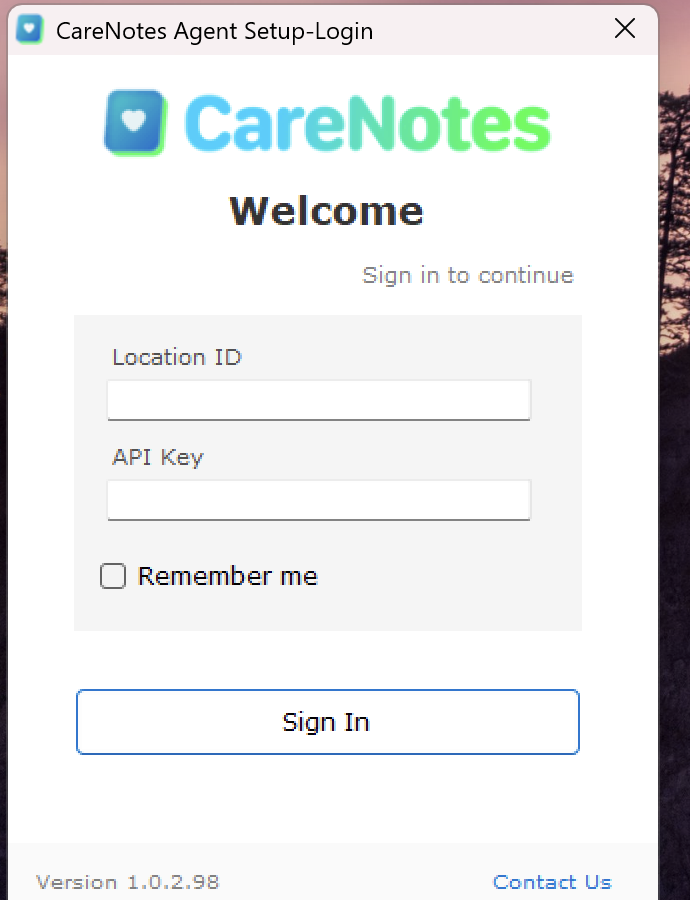
Type (or paste) your Location ID and API Key from the email, then click Sign In. Check Remember me so you won't have to enter them again.

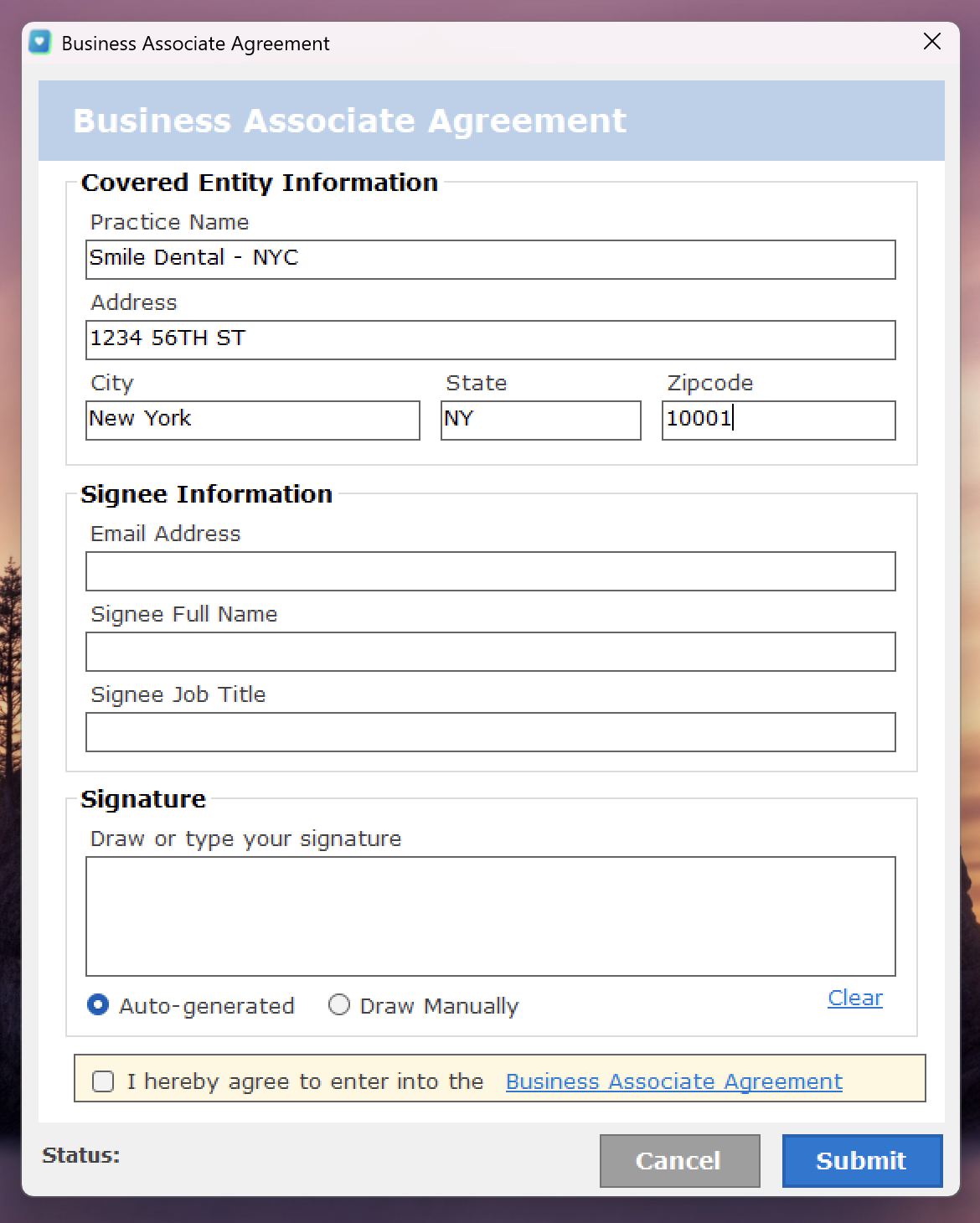
This one-time HIPAA form protects your practice. Fill in your practice details and signee info, add your signature, check the box, then click Submit.

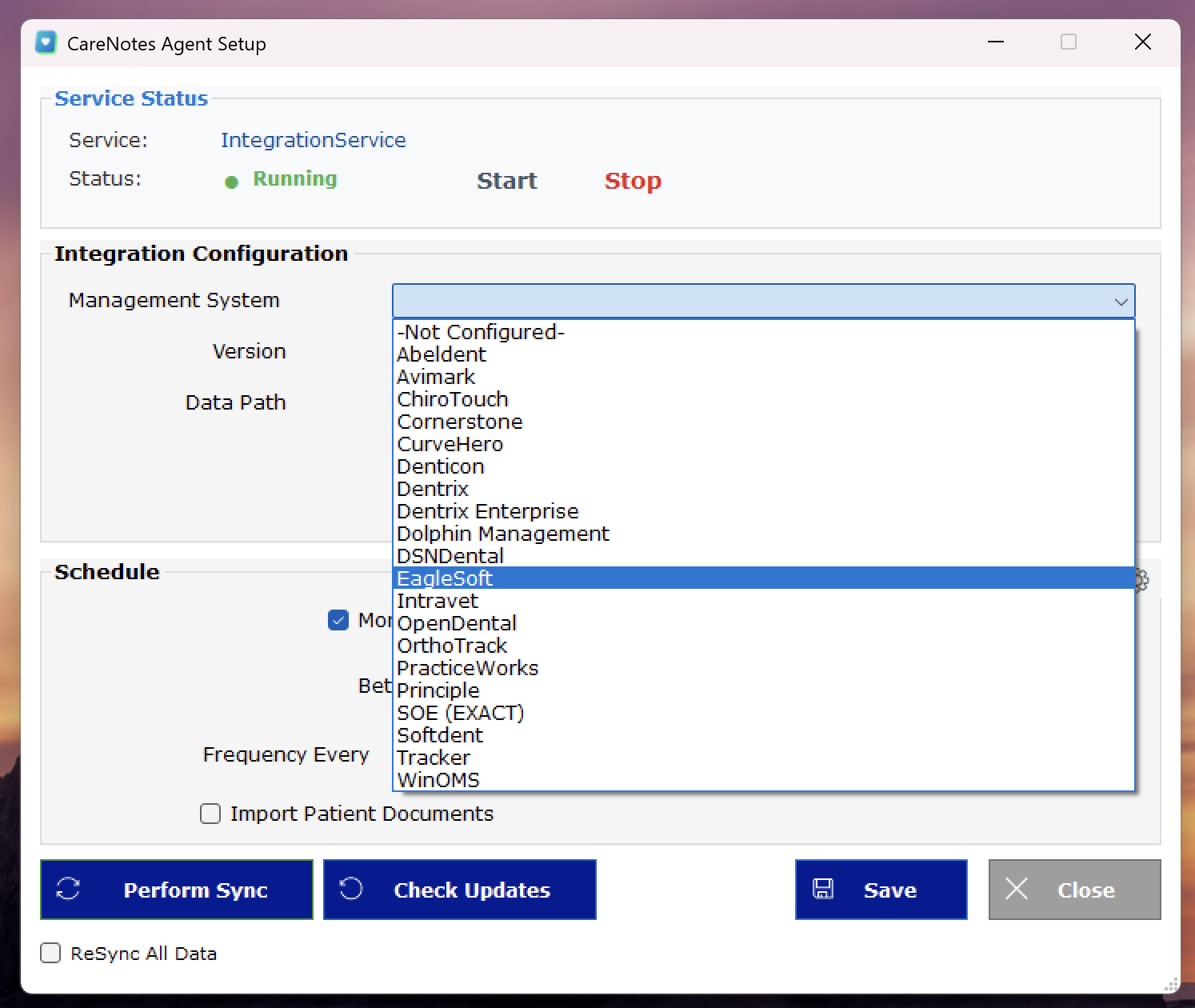
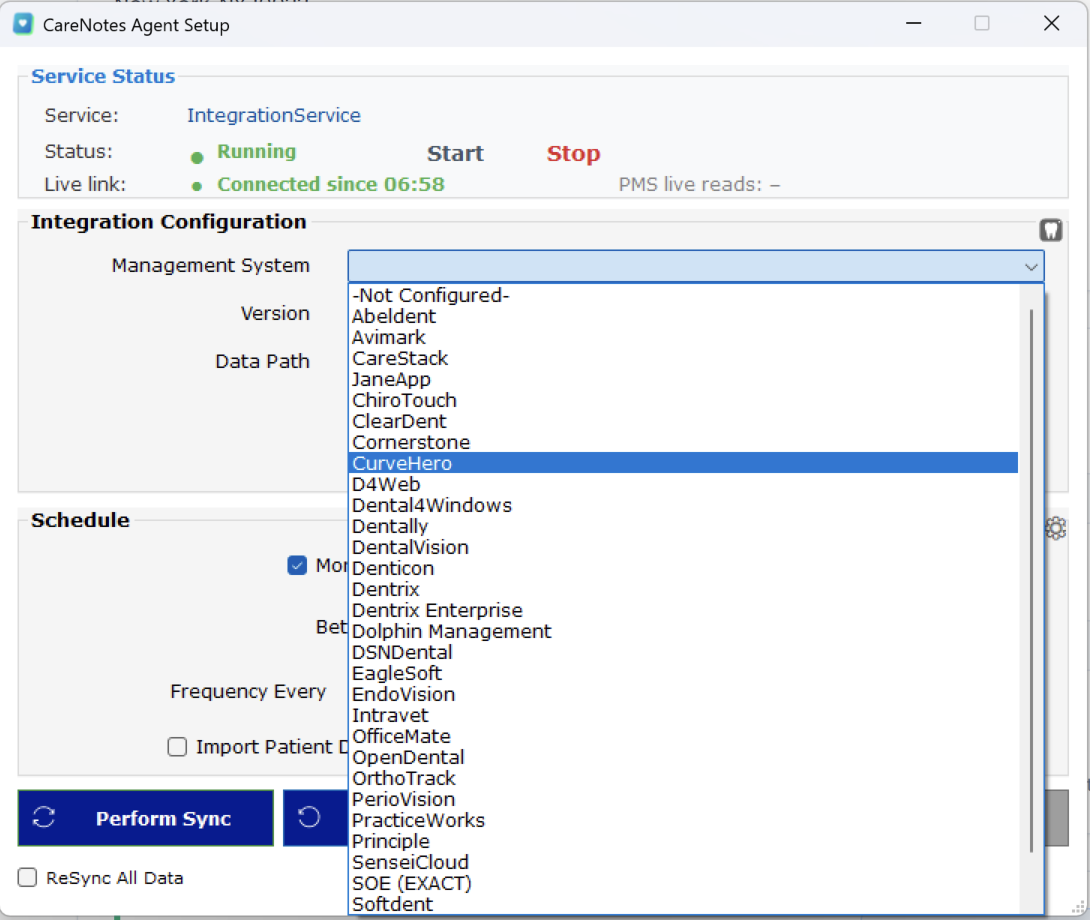
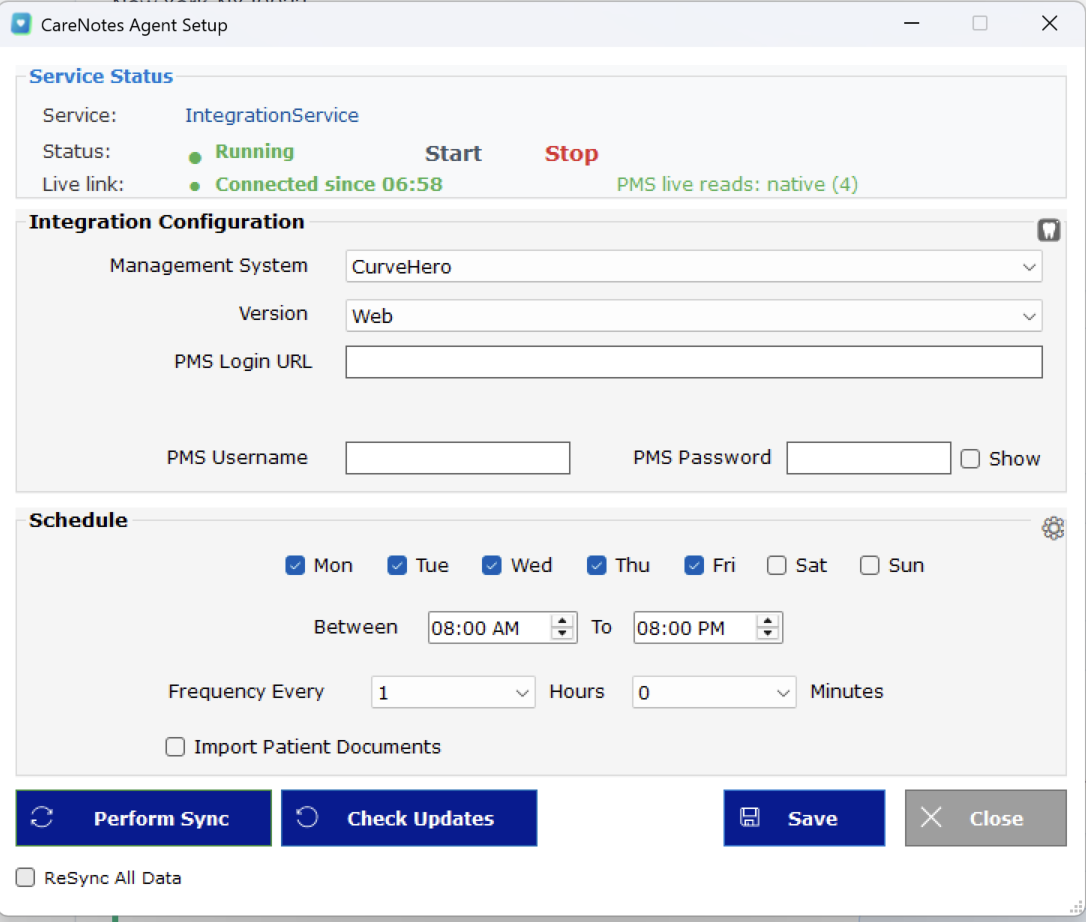
In Management System, pick your software from the list. Then choose your Version. The Data Path usually fills in automatically.

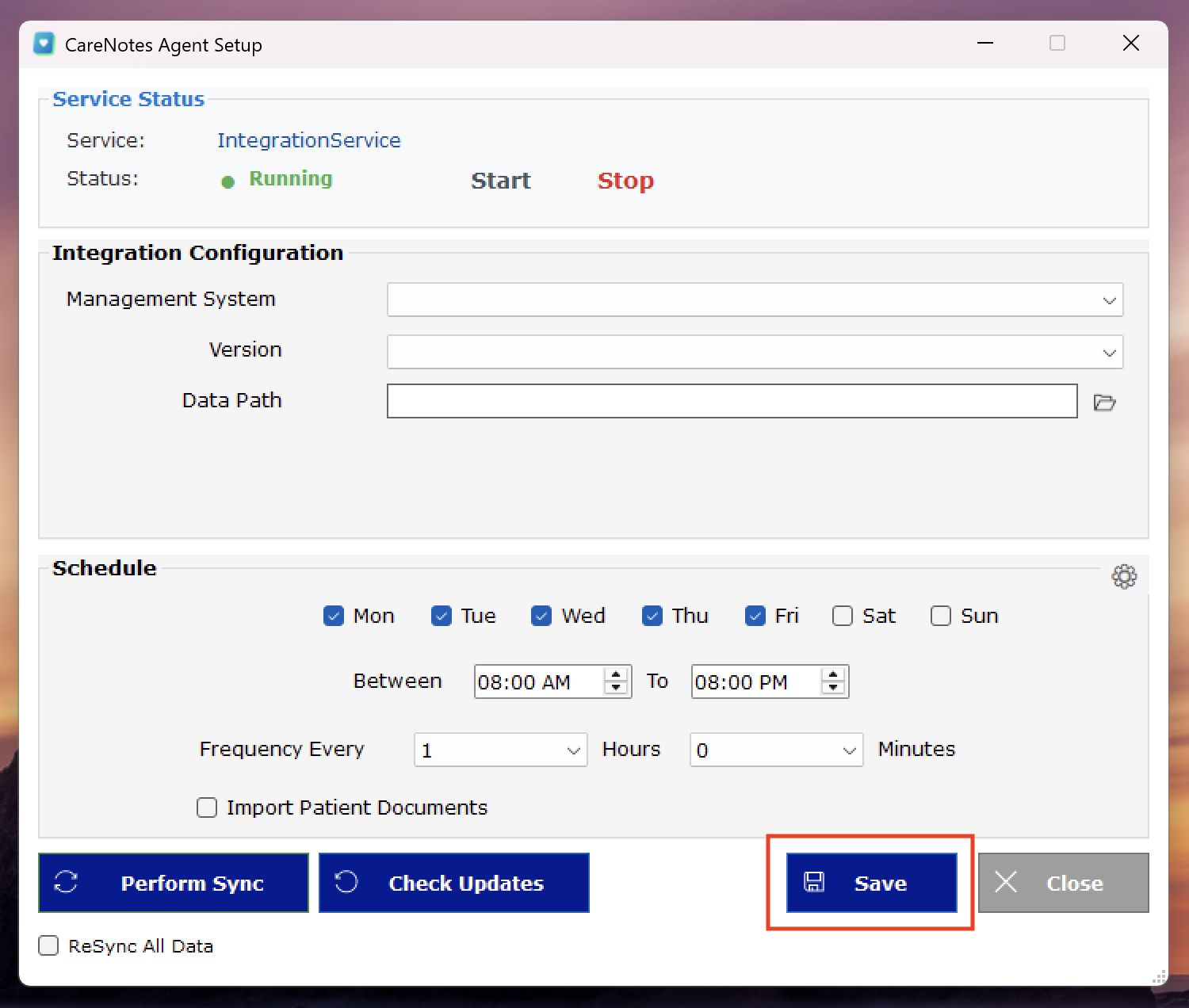
Click Save. Up top, Service Status should show a green ● Running. That's it — CareNotes is now connected!

Yes. New installers often trigger a blue "Windows protected your PC" screen. Click More info, then Run anyway to continue.
Double-check for extra spaces. Copy and paste directly from your welcome email rather than typing. The API Key always starts with crm_. Still stuck? Contact us.
Use the folder icon next to the Data Path box to browse to where your software stores its database. If you're unsure, reach out — we'll locate it with you.
Click Start next to Service Status, then Save again. If it still won't start, restart the computer and reopen the CareNotes Agent.
No — just once, on the computer or server that hosts your software database. Everyone in the practice benefits from that single install.
Real people, real dentists. Send us a message and we'll help you finish setup — often within minutes.